

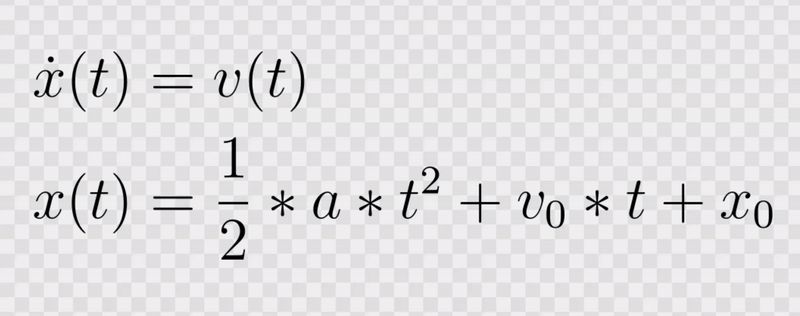


Recently, I needed to add a white background to a couple of images with a transparent background. Naturally, I used Python with OpenCV to automate the process, I wasn’t going to open an image editor for each of these images. On my first attempt at implementing this, I didn’t quite succeed and had to iterate, so I thought I would share the process with you.
If you want to follow along, make sure to install the opencv-python and numpy package in your local Python environment. You can use the following transparent image of an equation for experimentation, you can download it from here.


Load Image with Alpha Channel
In a first step, we need to load the transparent image including the alpha channel. If we load the image normally with cv2.imread without the required parameter, it will just ignore the alpha channel and the image will be completely black in this case.
img = cv2.imread("equation.png")cv2.imshow("Image", img)
cv2.waitKey(0)
cv2.destroyAllWindows()